


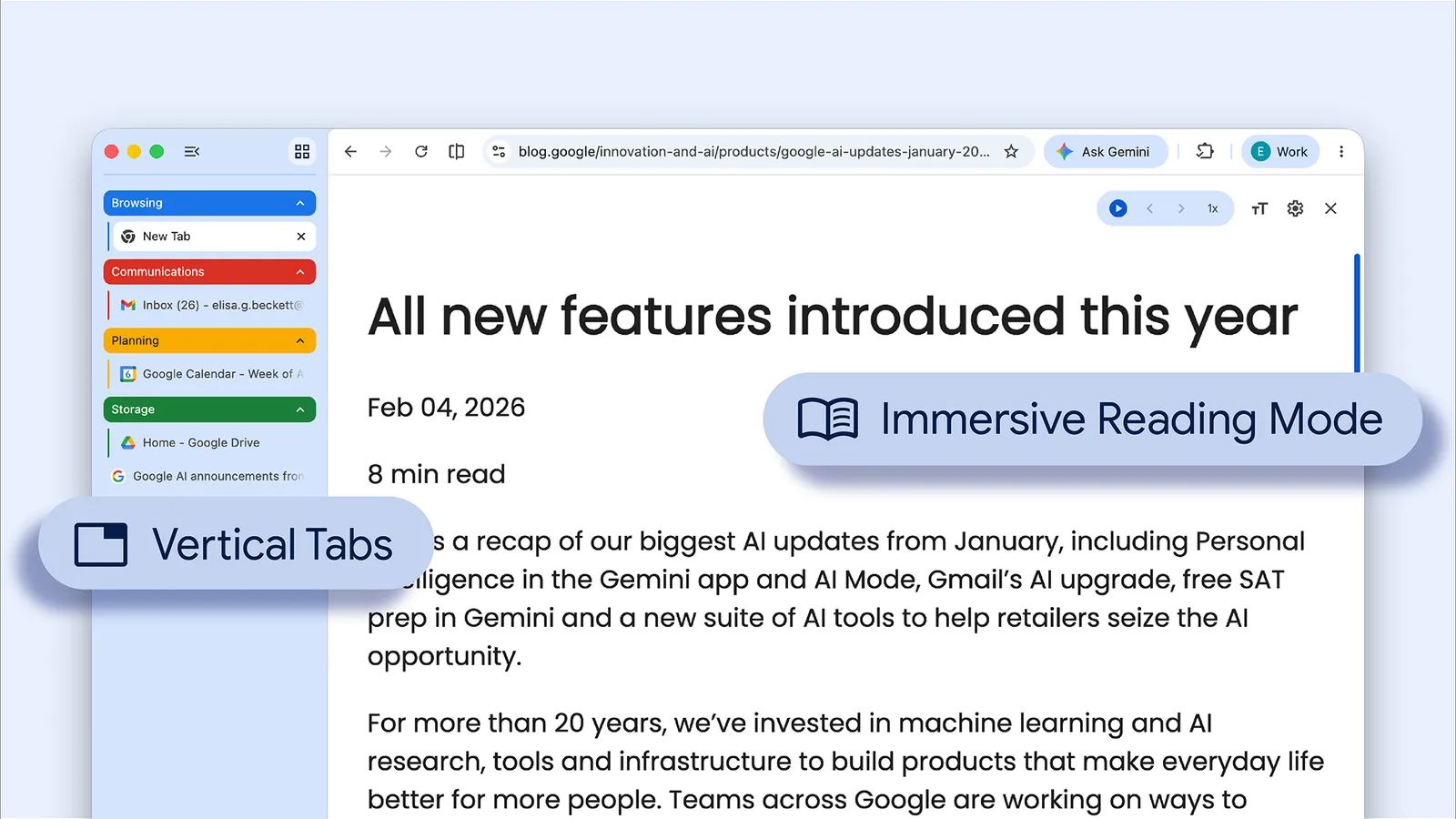
A new update for Google Chrome on desktop is arriving and brings with it two features designed to improve the user experience of the famous browser: vertical tabs and an immersive reading mode. Both are features already present in other web browsers but, as they say, better late than never.
How Google Chrome’s vertical tabs work

The first novelty of the Google Chrome update concerns the management of open pages, which can now be organized along the window’s side edge thanks to the vertical tabs. To activate this feature, simply right-click on any Chrome window (or on an empty spot on the window bar) and select the option “Show tabs vertically”.
In this mode it is possible to read the full titles of pages, useful especially when you have many tabs open and the top icons start to shrink. The vertical tabs bar can be enlarged or reduced, using the dedicated button.

To return to the previous view, simply right-click on a window or in the dedicated bar and choose the option “Show tabs horizontally”
There is also a new immersive reading mode

The browser improvements continue with the new reading immersive mode, transformed into a full-screen experience. To access the feature, simply right-click on any web page and select the option “Open in Reading mode”. In an instant a page crowded with banners and images becomes a distraction-free space, focused exclusively on the text. Through the toolbar at the top right it is possible to customize fonts and colors, or enable the speech synthesis.
How to activate the new features
Both new Google Chrome features are available for all desktop versions of the browser (Windows, macOS, Linux and ChromeOS). Just update Chrome to the latest available version to use both the new vertical tabs and the immersive reading mode. If the features are not yet available, you will need to wait for the update to run its course. Alternatively, you can activate them via the two dedicated flags: