


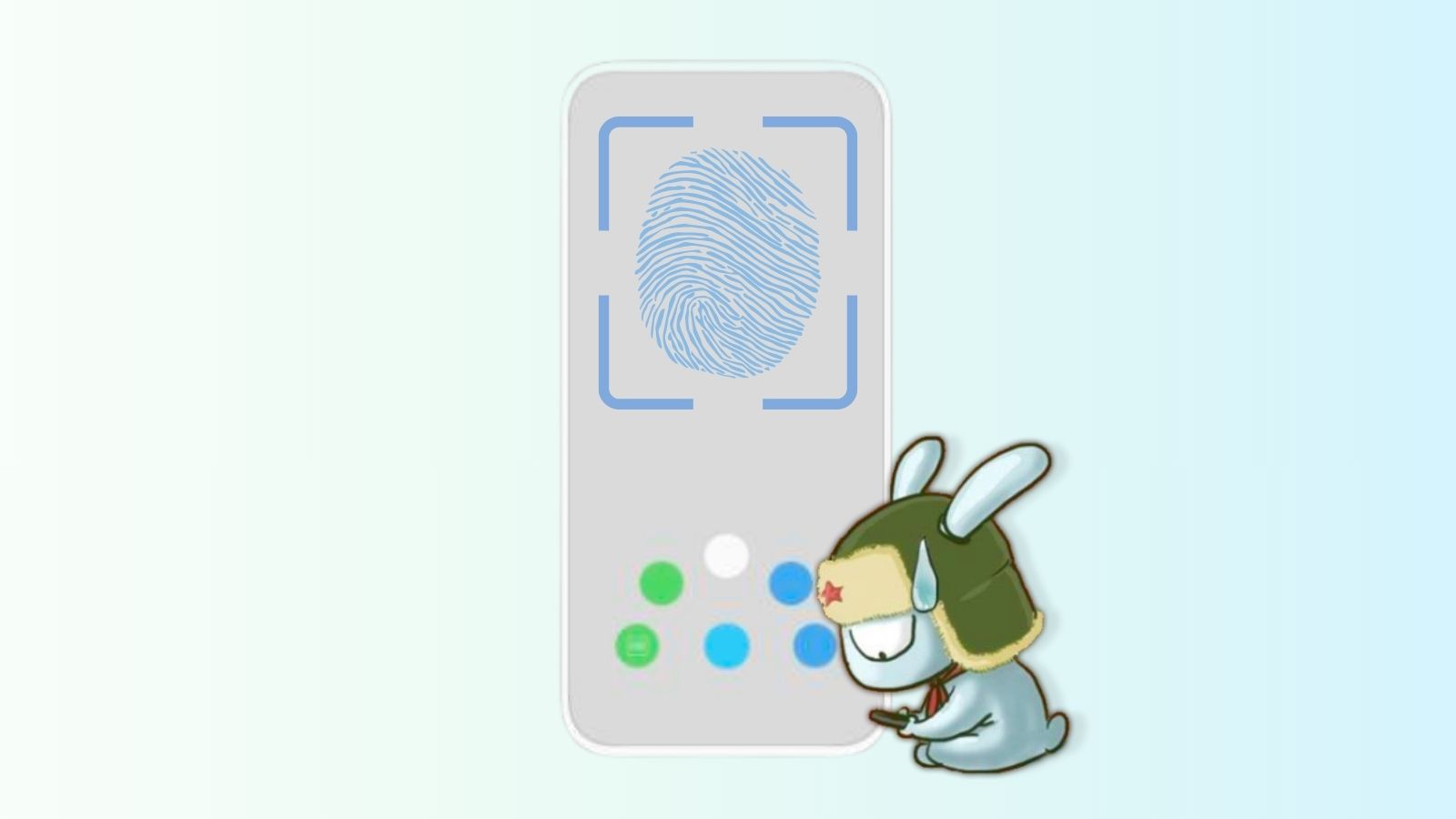
If you have a Xiaomi, Redmi or POCO smartphone with an under-screen fingerprint reader, you might have had right under your nose – indeed, under your thumb – a particularly convenient HyperOS 3 feature.
It isn’t just about security, but about pure speed: a single gesture that turns unlocking into a direct bridge to some of the useful features. In this guide, we explain how to activate the fingerprint shortcuts, a small trick inherited from MIUI and also available in the latest HyperOS.
Xiaomi, Redmi and POCO: how to activate the hidden fingerprint shortcuts on HyperOS 3

Although this feature has existed since the MIUI era, it isn’t known by everyone: Xiaomi’s software offers a slew of customizations and sometimes there are simply too many to list. Consequently there are some that remain hidden in the system settings and are often overlooked by users.
Among these you’ll find the hidden fingerprint shortcuts: it’s a feature that lets you quickly access certain apps or tools (such as the QR code scanner or the Google search) directly from the lock screen, without having to lift your finger after unlocking.
<!– wp:yoast/how-to-block {"jsonDescription":"How to activate the fingerprint shortcuts on HyperOS“,”steps”:[{“id”:”how-to-step-1771498375814″,”name”:”Open the Settings on your Xiaomi, Redmi or POCO device.”,”text”:””,”jsonName”:”Open the Settings on your Xiaomi, Redmi or POCO device.”,”jsonText”:””,”images”:[]},{“id”:”how-to-step-1771498393612″,”name”:”Enter the menu “Fingerprints, face data and screen lock“.”,”text”:””,”jsonName”:”Enter the menu “Fingerprints, face data, and screen lock“.”,”jsonText”:””,”images”:[]},{“id”:”how-to-step-1771498404122″,”name”:”Select “Unlock with fingerprint“.”,”text”:””,”jsonName”:”Select “Unlock with fingerprint“.”,”jsonText”:””,”images”:[]},{“id”:”how-to-step-1771498406284″,”name”:”Find the “Shortcuts” entry and enable the switch.”,”text”:””,”jsonName”:”Find the “Shortcuts” entry and enable the switch.”,”jsonText”:””,”images”:[]}],”defaultDurationText”:”Time required:”} –>How to activate the fingerprint shortcuts on HyperOS
- Open the Settings on your Xiaomi, Redmi, or POCO device.
- Enter the menu “Fingerprints, face data, and screen lock“.
- Select “Unlock with fingerprint“.
- Find the “Shortcuts” entry and enable the switch.
Once the function is activated, do not lift your finger immediately after the phone unlocks. Keep pressing on the sensor: a small scrolling menu will appear. Slide your finger toward the app or function you want to launch and release it to open it instantly.
In HyperOS Global builds, shortcuts usually include the QR code scanner, the Google search (via Mi Browser) and the ability to add an event to the Calendar, while in the Chinese versions there are often shortcuts for digital payments.
Unfortunately, the secret menu only covers these three features (we’re using HyperOS 3 on a POCO F7) and it isn’t possible to customize them.